
In the previous post we looked at why MQTT and AMQP are a better fit for IoT devices than HTTP. Now we’re moving back inside IoT Hub itself, to message routing.
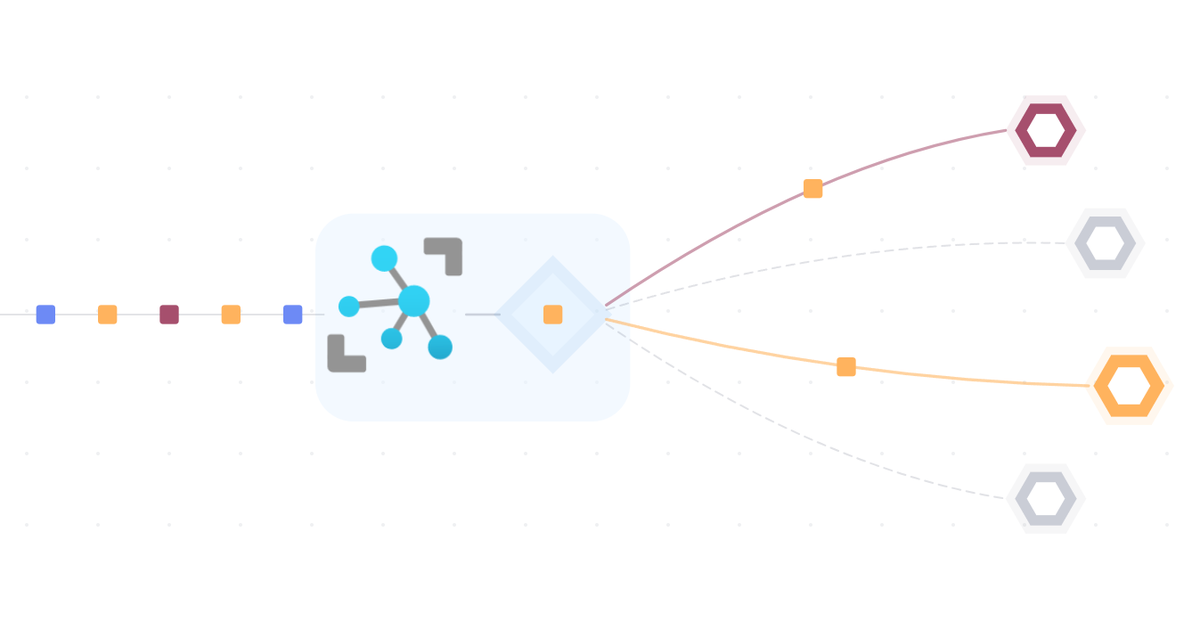
Message routing is what connects IoT Hub to the rest of your Azure architecture. Without it, messages pile up in IoT Hub and eventually get deleted. With it, data flows to whatever endpoints you configure - in our architecture, that’s the three paths we covered in post 3, but the routes you define are entirely up to you.
What is message routing? #
IoT Hub receives messages, but receiving them is only half the job. Without routing, every message expires and disappears. Routing is what moves data forward - from IoT Hub to wherever you actually need it.
Routing works through two concepts: endpoints and routing queries.
IoT Hub has one built-in endpoint that is always available. By default, every message goes there.
On top of that, you can define custom endpoints - connections to other Azure services that IoT Hub can forward messages to. Not every Azure service can be a custom endpoint. The supported types are Azure Storage, Event Hubs, Service Bus queues, and Service Bus topics. Services like Azure Data Explorer and Azure Stream Analytics are not custom endpoint types in IoT Hub; they connect to IoT Hub in their own way (more on that in the three-path architecture section below).
A routing query is a boolean expression that evaluates to true or false for each incoming message. When the query evaluates to true, the message gets forwarded to the endpoint on that route. When it evaluates to false, it doesn’t.
Combine an endpoint with a routing query, and you have a route.

One message, multiple routes #
One thing worth understanding up front: a single message can match multiple routes at the same time. IoT Hub evaluates all routing queries independently. If a message matches three route conditions, it gets sent to all three endpoints simultaneously.

The fallback route #
What happens if a message doesn’t match any routing query? Or if you haven’t set up any routes at all?
That’s what the fallback route handles. The fallback route catches every message that doesn’t match any custom route and forwards it to the default built-in endpoint.

A complete message example #
Here’s what a typical D2C message looks like:
{
  "body": {
    "messageId": 2,
    "deviceName": "Raspberry Pi Simulator",
    "temperature": 24.78,
    "humidity": 70.19
  },
  "enqueuedTime": "Thu Nov 28 2024 18:41:50 GMT+0100",
  "properties": {
    "temperatureAlert": "false"
  }
}
Every message has three sections. The body is the main payload - the sensor readings sent by the device. The properties section contains application properties, which are custom key-value pairs the device sets on the message. The enqueuedTime is a system property, added automatically by IoT Hub when it received the message.
These three sections map directly to how you write routing queries.
Writing routing queries #
A routing query evaluates properties from the message. Each section has its own syntax:
Application properties are referenced directly by name:
temperatureAlert = 'true'Application properties are always strings, so the value needs quotes even if it looks like a boolean.
Message body fields need a $body. prefix:
$body.deviceName = 'Raspberry Pi Simulator'System properties use a $ prefix:
$iothub-connection-device-id = 'device-001'You can combine conditions using AND and OR:
temperatureAlert = 'true' AND $body.deviceName = 'Raspberry Pi Simulator'Going back to the message example above: a query like temperatureAlert = 'true' would evaluate to false (the value is 'false'), while $body.temperature > 20 would match.
How this connects to the three-path architecture #
In the later modules of the course, we connect the three paths like this:
- Cold path: a custom routing endpoint pointing to Azure Storage Account, with a routing query that matches all messages (
true). Every message gets written to blob storage. - Warm path: Azure Data Explorer connects directly to IoT Hub’s built-in endpoint, not via a custom routing endpoint.
- Hot path: Azure Stream Analytics also connects directly to IoT Hub’s built-in endpoint, not via a custom routing endpoint. It then evaluates the stream with a SQL query and forwards matching messages onward.
Understanding routing queries now makes the later configuration steps much easier to follow. When you see a query like
truein the cold path setup, you’ll know that it’s a catch-all - every message matches, so everything goes to storage.
What comes next? #
With message routing covered, we can move on to the data paths. The next post looks at Azure Data Explorer - the service that handles the warm path - before we dive into each path individually.