

In the previous post we looked at cloud-to-device messaging in IoT Hub: how the cloud sends commands back to individual devices. Now we close out the series by returning to the data paths.
The warm path and hot path have both been covered: Azure Data Explorer handles near-real-time storage and querying, Azure Stream Analytics handles threshold detection and alerting. The one path that hasn’t had its own post yet is the cold path. That’s what this one is about.
What is the cold path? #
The cold path is the data route for everything you want to keep but don’t need to act on immediately. Its purpose is long-term storage: preserving raw device data so it’s available for future use, whatever that turns out to be.
That future use might be historical analysis, spotting trends over months or years that would be invisible on a shorter time scale. It might be building or improving a machine learning model. It might be an audit trail for compliance. Or it might just be a safety net: you don’t know exactly what questions you’ll want to answer later, but you want the original data available when you do.
Three things define the cold path:
High latency is acceptable. You’re not looking at this data right now. Writing it in batches every minute is fine. The cold path prioritizes cost and reliability over speed.
Raw data is preserved exactly as received. The original message is stored untouched. Never modify source data before putting it in cold storage. Future analysis depends on having the original values.
Storage is long-term and cheap. You’re potentially storing months or years of data from many devices. The cost per GB needs to be low.
How it fits into the three-path architecture #
A quick recap of where the cold path sits. When a message arrives in IoT Hub, message routing determines where it goes. You define routes, each with a target endpoint and a query condition. A message can match multiple routes simultaneously and be sent to all of them at once.
In the architecture this series builds:
- The cold path uses a custom routing endpoint pointing to Azure Storage Account. The routing query is
true, so every message matches and everything goes to storage. - The warm path uses Azure Data Explorer, which reads directly from IoT Hub’s built-in endpoint.
- The hot path uses Azure Stream Analytics, which also reads from the built-in endpoint. ADX and Stream Analytics don’t use custom routing endpoints; they connect to IoT Hub in their own way. The cold path is the one that actually uses message routing in the traditional sense, with a custom endpoint defined in IoT Hub’s routing configuration.
Why Azure Storage Account? #
Several Azure services can serve the cold path. For this series, we use Azure Storage Account, and it’s a strong fit for a few reasons.
It’s cheap. Storage Account is one of the lowest-cost storage options in Azure, and IoT solutions generate a lot of data. For raw archiving where you may never query the data again, the economics matter.
It’s scalable. You can throw as much data at it as you want without worrying about capacity limits.
It integrates natively with IoT Hub message routing. You define a storage endpoint in IoT Hub’s routing configuration, point it at a container in your Storage Account, and messages start flowing in automatically.
And it preserves data in a portable format. Messages are stored as JSON files in blob containers, exactly as they were sent by the device. No transformation, no interpretation. Just the raw data.
How data is written to storage #
When IoT Hub routes messages to a Storage Account endpoint, it doesn’t write one file per message. That would be enormously expensive in terms of write operations for a high-frequency IoT solution. Instead, messages are collected and written in batches.
Two settings control when a batch gets written:
Batch frequency sets the maximum time interval between writes. The minimum is 60 seconds. With a 60-second setting, data is written to storage at least once per minute.
Chunk size window sets the maximum file size in megabytes. When a batch reaches that size, it gets written immediately, regardless of the time interval.
In practice, a batch is written when either condition is met first. So with a 60-second frequency and a 100 MB chunk size, you’ll get a new file every minute under normal load, or sooner if the data volume is high enough to hit the size limit.
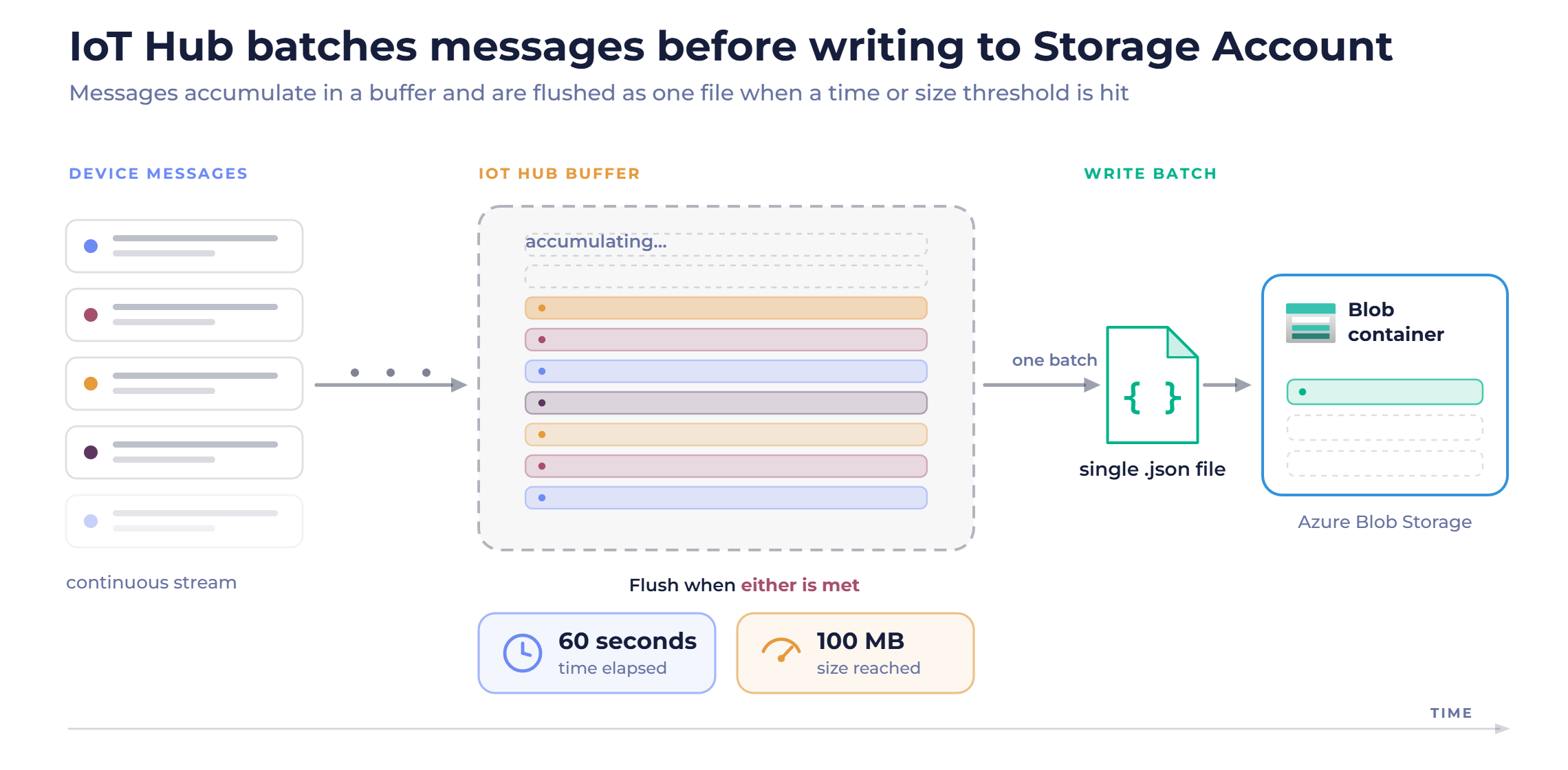
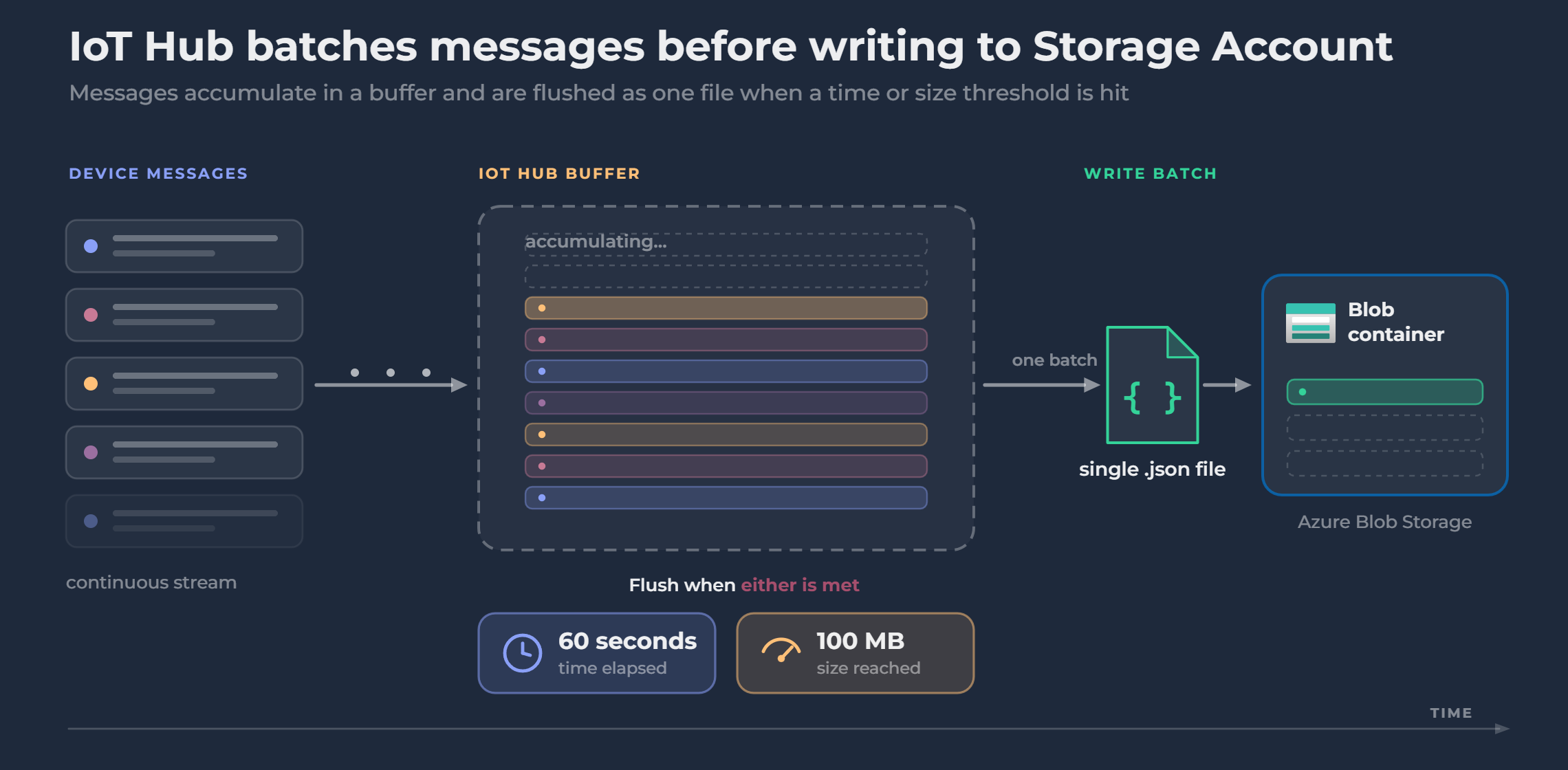
The files are written in JSON format. Each file contains multiple messages, and the file path follows a naming convention that includes the IoT Hub name and timestamp fields. This makes it straightforward to navigate the stored data chronologically.
Setting up the routing #
In IoT Hub, creating the cold path route is a two-step process. First, you create the endpoint. Then, you create the route that uses it.
Creating the endpoint means pointing IoT Hub at a specific container in your Storage Account. You configure the batch frequency, chunk size, and output format (JSON in this case). You also give the endpoint a name; something like “rawdata” or “coldpath” works fine.
Creating the route means defining which messages should go to that endpoint. For the cold path, the routing query is simply true. That query evaluates to true for every message, so everything gets routed to storage. You also give the route a name and confirm the data source: Device Telemetry Message, which covers all device-to-cloud messages.
Once the route is active, messages start flowing into the Storage Account immediately.
Watch out: the fallback route stops working #
When you create a custom route with a catch-all query like true, every incoming message matches it and gets forwarded to the custom endpoint. The fallback route, which normally sends unmatched messages to the built-in endpoint, no longer receives anything.
This is a problem for the rest of the architecture. As covered in earlier posts, both Azure Data Explorer and Azure Stream Analytics read from the built-in endpoint. ADX uses it to feed the warm path; Stream Analytics uses it to feed the hot path. With the fallback route disabled, neither service receives any messages. Your monitoring dashboards go dark and threshold detection stops working.
The fix is to add a second route that explicitly targets the built-in endpoint, also with a query of true. With that in place, messages flow to cold storage via the custom route and to the built-in endpoint via the second route, simultaneously. ADX and Stream Analytics pick up their data as normal.
What to do with the data later #
Once the data is in cold storage, you have options. You can run batch analytics jobs against the stored files, feed the data into a machine learning pipeline, or archive it and simply leave it alone until you need it.
What you shouldn’t do is modify the stored files. The raw data in cold storage should stay exactly as it arrived. If you need to transform or process it, do that downstream, on a copy, and leave the original intact.
Wrapping up the series #
This post completes the three-path picture. The series has now covered all three data paths and the Azure services that handle each one:
- Cold path - Azure Storage Account: raw data, long-term, batched, cheap
- Warm path - Azure Data Explorer: streaming ingestion, mid-term storage, queryable with KQL
- Hot path - Azure Stream Analytics + Event Hub + Logic Apps: real-time threshold detection and alerting Together, these three paths form the core of an Azure IoT data pipeline. Every message that arrives in IoT Hub can be archived for the long term, made available for near-real-time monitoring, and evaluated for critical conditions, all simultaneously.
This series has covered the concepts and the architecture. If you want to go further and actually build it, the Udemy course walks through the entire thing hands-on: connecting a device, setting up all three paths, and wiring it all together in Azure.